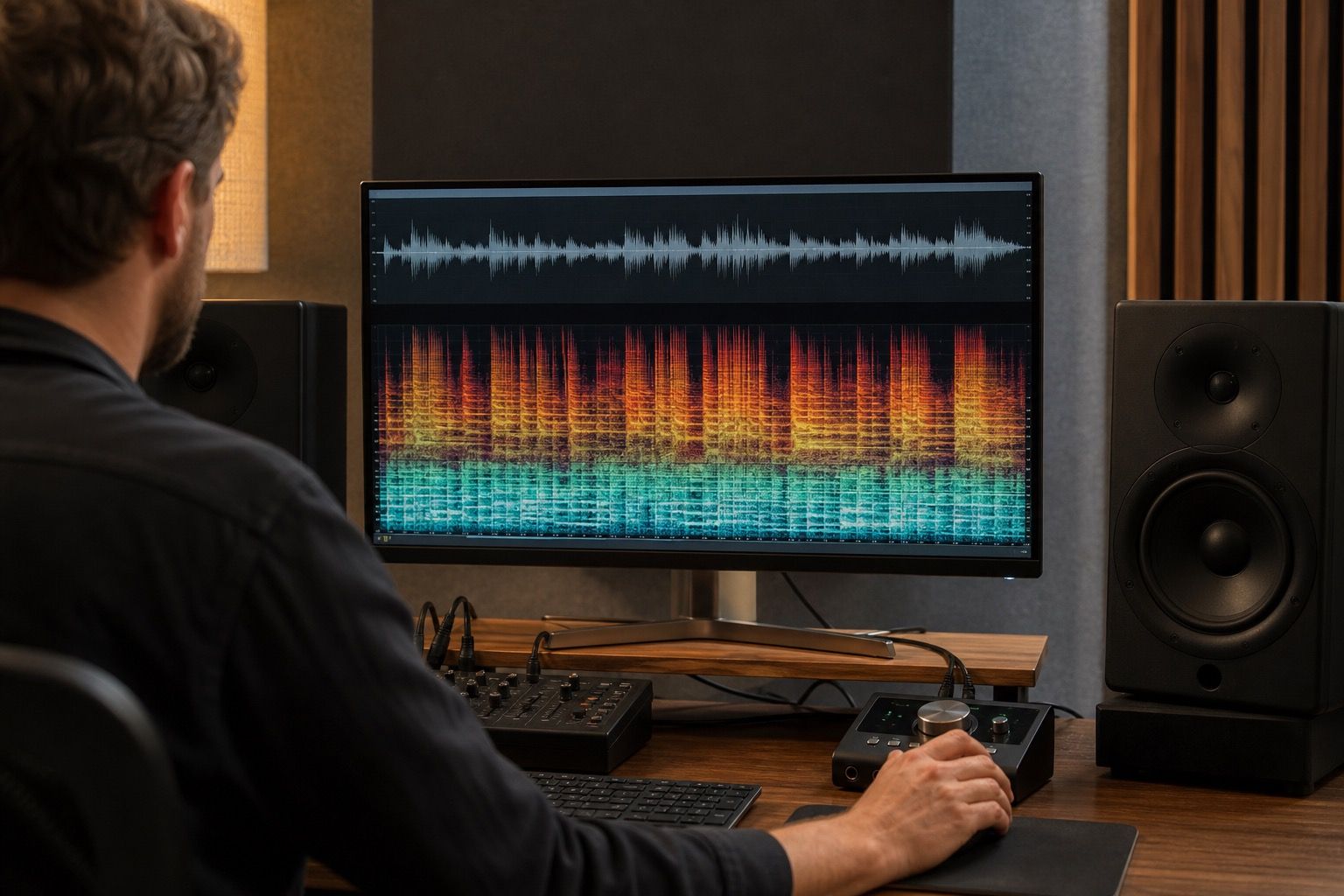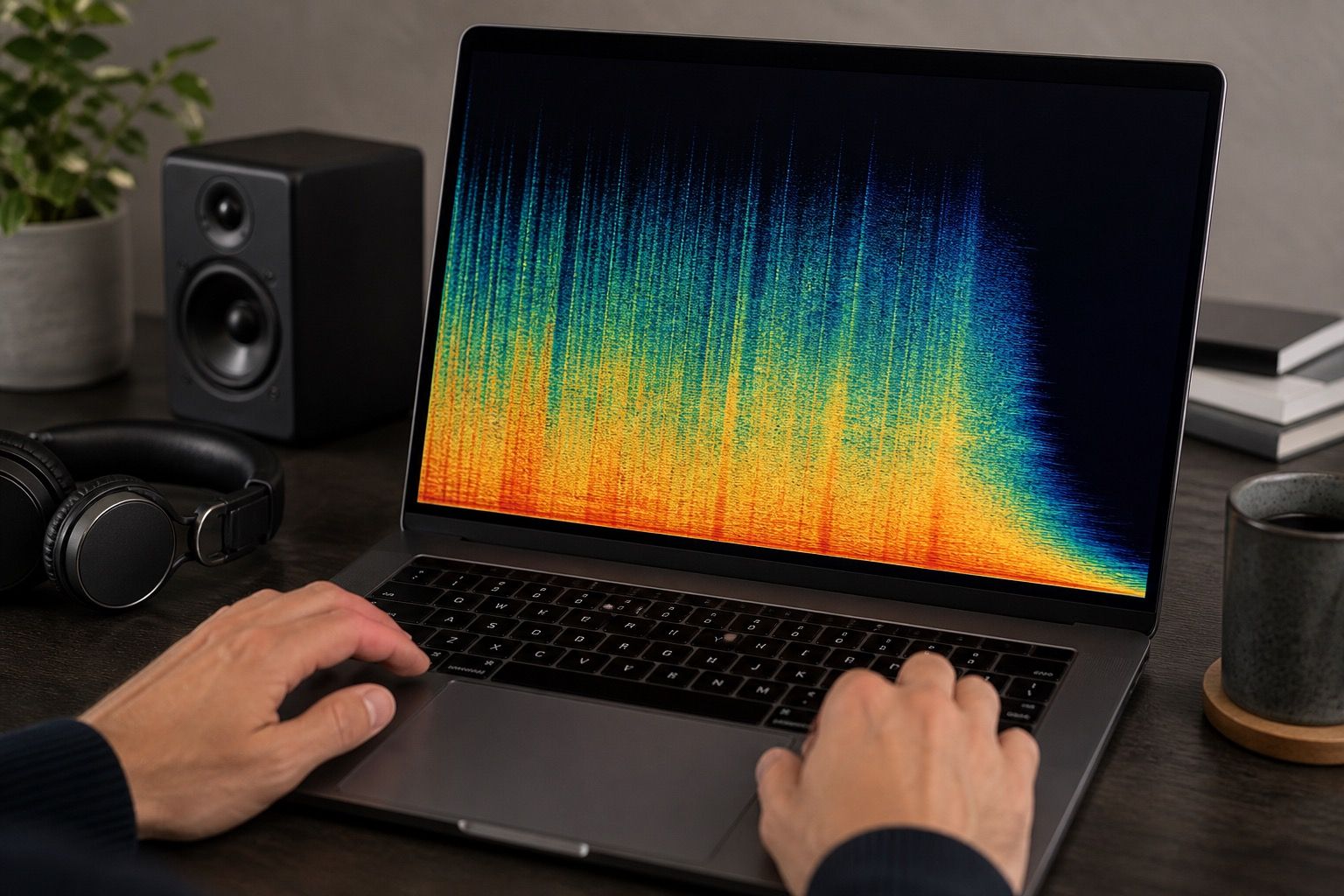
An MP3 spectrogram is useful, but it is not a clean window into the original track. It shows the music after a codec has made decisions about what to keep, soften, remove, and smear. With AI music, that means the picture can reveal delivery problems and also distract you from the actual source.
Why MP3 changes what the spectrogram shows
MP3 is built to reduce file size by throwing away information that should be less noticeable to human hearing. That is reasonable for sharing a preview. It is awkward when you use mp3 to spectrogram as forensic evidence. The encoder may low-pass the top end, blur fast transients, or create patterns around loud events that were not present in the uncompressed export.
The first thing I check is the upper frequency area. A 128 kbps file often shows a clear ceiling, with little useful content above it. A 320 kbps file may keep more detail, but it is still shaped by the codec. If the entire top band seems trimmed with a ruler, that usually says more about MP3 settings than about the AI model.
This matters because AI music already has its own odd signatures: fizzy cymbals, glassy vocal harmonics, watery reverb tails, and dense noise around synthetic guitars. Compression can hide some of that, then add a separate layer of codec behavior. If you do not separate the two, you end up repairing the preview instead of the track.
Separate codec cutoff from AI fizz
A high-frequency cutoff is one of the easiest MP3 traits to misread. On the spectrogram, it can look like the track simply has no air above a certain point. Sometimes that is true because the source is dull. Often it is just the encoder. The quickest check is to compare against a WAV or FLAC export from the same render. If the lossless version extends higher and looks less chopped, the MP3 ceiling is not a source defect.
AI fizz behaves differently. It tends to follow musical events. It may flare around hi-hats, vocal consonants, distorted guitars, or stacked backing vocals. It can appear as restless bright dust rather than a flat cutoff. A codec ceiling is broad and mechanical; AI fizz usually moves with the performance, which is one reason it can feel tiring even when it is not very loud.
| Pattern | Likely cause | Best next check |
|---|---|---|
| Flat top-end cutoff | MP3 bitrate or encoder low-pass | Compare with WAV or FLAC |
| Bright dust around cymbals | AI texture, codec smear, or both | Inspect the same chorus in the master |
| Blur before drum hits | Pre-echo or transient compression | Check a lossless export before repair |
I avoid making cleanup decisions from an MP3 alone unless there is no other file. If the MP3 is all you have, it can still tell you where to listen carefully, but it should not be treated as the final diagnosis.
Check loud choruses for extra smear
Loud choruses expose MP3 problems because the encoder has less room to hide. Dense vocals, stereo synths, cymbals, and limiter pressure all compete for space. On an mp3 spectrogram, the result can look like a cloudy band around the busiest moments. That cloud might be codec smear rather than a problem caused by the AI generator.
I like to compare a quiet verse, a snare hit, and the first full chorus. If the verse looks relatively clean but the chorus turns into a soft block, compression is probably part of the story. If the same watery texture exists in the lossless master, the issue survived before MP3 and needs cleanup upstream.
Pre-echo is another small but irritating clue. It can appear as a faint blur before a sharp drum hit or vocal attack. In listening, it feels like the transient has a little ghost in front of it. AI music can already soften attacks, so MP3 pre-echo can push an almost acceptable mix into mush. Again, the fix is not to master harder from the MP3. The fix is to return to the cleanest export and check whether the transient is already damaged.
Use MP3 only as a delivery preview
MP3 is valuable at the end of the chain. It tells you how the track survives a compressed copy, which is exactly what many listeners will hear through messages, demos, car systems, or rough uploads. I do make MP3 previews, but I make them from the clean master after repair, not from the file I am trying to diagnose.
For AI music, the delivery preview can catch problems that feel minor in WAV. A vocal shimmer may become sharper after encoding. A cymbal fizz may turn into a sandy wash. A bass line may lose definition if the mix already leans on too much upper harmonic noise. Those are useful listening notes, but they are notes about delivery resilience.
The practical workflow is simple: clean the WAV or FLAC, export a stable master, then make an MP3 copy at the bitrate you expect people to hear. If the compressed copy sounds rough, adjust the master gently and make a new preview. Do not keep processing the MP3 itself unless the job is only to rescue a damaged file that has no better source.
Keep a clean master before making compressed copies
The safest habit is to preserve one clean master before every delivery format. That file might be WAV for editing or FLAC for archiving, but it should not be MP3. Once compression has thrown away detail, converting it back to a larger file does not restore the missing information. A large WAV made from MP3 is just an MP3 history wearing a heavier coat.
When I check an MP3 spectrogram, I label the result honestly in my notes: delivery preview, client reference, rough upload, or only available source. That small label changes the decision. A rough upload can explain a cutoff. An only source file may require rescue work. A final delivery preview should be judged by whether it remains listenable, not by whether it looks lossless.
An MP3 spectrogram is best when it keeps you cautious. It can show low-pass behavior, bitrate stress, pre-echo, and cymbal smear. It can also lure you into blaming the AI render for damage created later. Use it, but keep the clean master nearby, and make the source file answer the serious questions.