When I want to inspect an AI music export without guessing, I start with the plainest file I can get. A WAV spectrogram will not make a rough track better, but it gives fewer excuses: less codec fog, fewer delivery artifacts, and a cleaner view of what the render actually contains.
Why WAV is the fairest file to inspect
A WAV file is usually the closest thing to the exported master in a small music workflow. It stores pulse-code audio without perceptual compression, so when you generate spectrogram from audio, the display is not first reshaped by an MP3 encoder. That matters with AI music because the problems are often quiet, narrow, and easy to blame on the wrong stage.
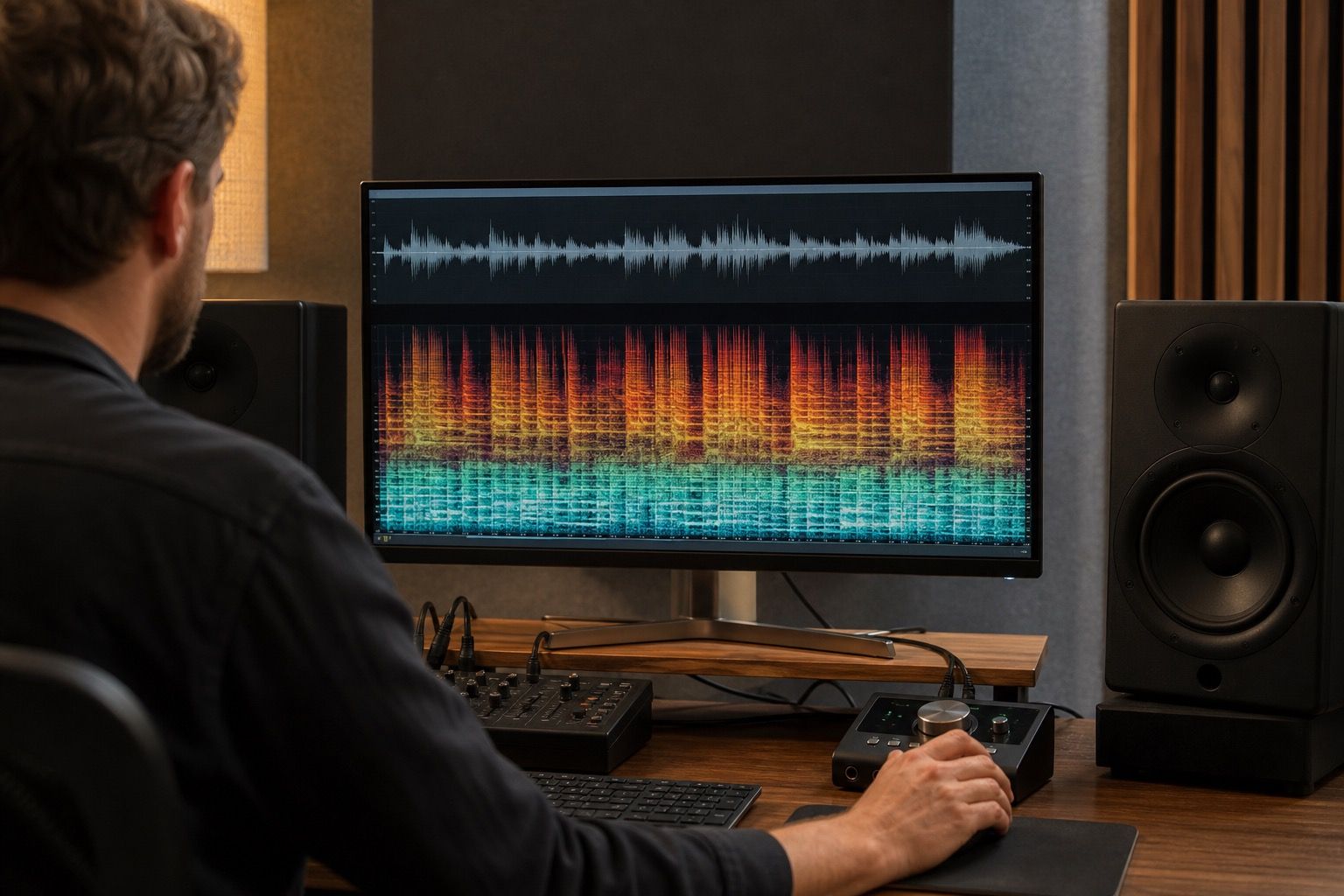
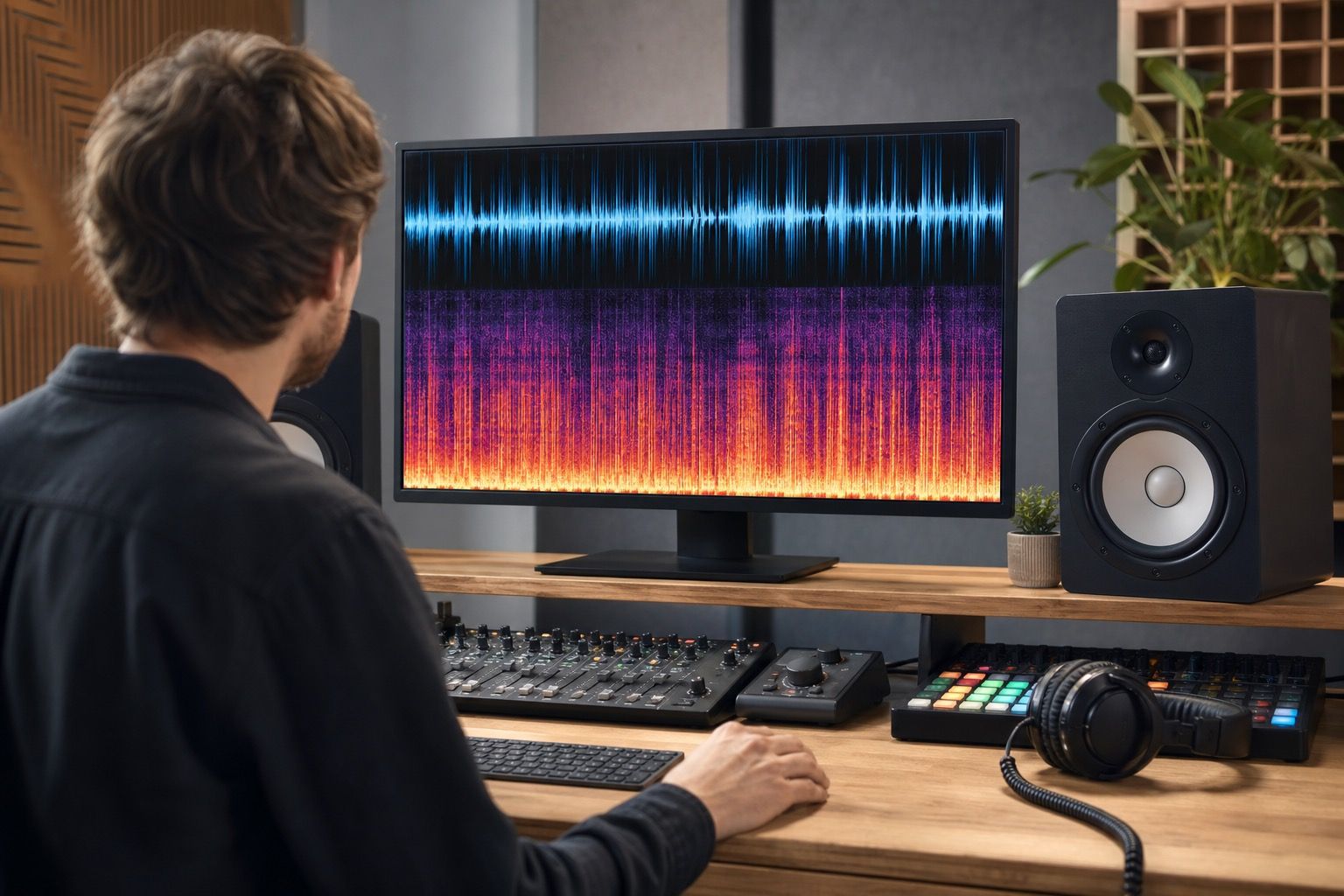
On a spectrogram, I look for three things before I listen again: the high-frequency ceiling, the noise floor between phrases, and any thin stripes that stay in place while the music moves around them. A harsh vocal sizzle around a chorus, a metallic wash on cymbals, or a frozen band above the mix can be visible in WAV before it becomes obvious on speakers.
The trap is treating WAV as a magic certificate. A WAV made from a poor source is still a poor source in a large container. If the AI platform rendered brittle cymbals or a phasey vocal, saving that render as WAV preserves the problem faithfully. That is useful for diagnosis, not for pretending the file has become higher quality.
Check sample rate before comparing versions
Before I compare two exports, I check the sample rate and bit depth. A 44.1 kHz WAV and a 48 kHz WAV can both be fine, but a careless resample can draw little clues into the spectrogram that look more dramatic than the music deserves. If one version has been converted twice, the visual difference may be the workflow, not the song.
For most practical cleanup, matching the project target is enough. If the track is headed to a normal music release, a clean 24-bit WAV at the working sample rate is a sensible inspection file. If the only available render is 16-bit, it is still worth checking; just remember that very low-level tails and fade-outs may look slightly different from a 24-bit export.
| Check | What I look for | Why it matters |
|---|---|---|
| Sample rate | 44.1 kHz, 48 kHz, or a known project rate | Prevents false comparisons after resampling |
| Bit depth | 16-bit or 24-bit from the actual export | Frames noise floor and fade detail honestly |
| Silence | Rendered tails, blank intros, room-like residue | Reveals hiss, hum, or model residue between notes |
I do not recommend upsampling just to make a spectrogram look fuller. If the content above a certain band is not in the source, a higher sample rate will not invent useful musical detail. It can only make the file larger and the comparison messier.
Spot artifacts that MP3 can hide or add
When someone sends me an MP3 and a WAV of the same AI track, the WAV is the one I trust for cleanup decisions. MP3 may hide tiny defects behind compression, or it may add its own smear around transients. A strange fizz in a cymbal crash might be the model, the encoder, or both. WAV removes one suspect from the room.
A good wav to spectrogram pass can show whether the harshness is baked into the source. If the vocal has a narrow whistle that appears every time the singer hits a vowel, the problem is probably in the render or the vocal stem. If the MP3 shows a low-pass shelf and fuzzy edges while the WAV looks cleaner, I would not spend an hour repairing an artifact created only for delivery.
This is also useful with AI music export revisions. One version may sound brighter but show a hard high-frequency ceiling, while another has less sparkle and fewer isolated streaks. The spectrogram does not choose the better song for you, but it can keep you from choosing the version that merely sounds louder or shinier for ten seconds.
Use WAV references during cleanup
During cleanup, I keep a reference WAV before every heavy process. One untouched export, one repaired working file, and one final master are enough for most tracks. Naming them clearly is dull, but it saves the familiar late-night problem where every file sounds slightly different and nobody remembers which one fixed the vocal hum.
When I create spectrogram from audio after each pass, I compare the same ten or twenty seconds: an exposed intro, a loud chorus, a vocal phrase with breath, and the final decay. Those moments reveal different failures. The intro shows noise floor. The chorus shows smear and clipping-like density. The breath shows whether cleanup dulled the human edges. The tail shows whether the repair left a synthetic haze behind.
The main risk is over-cleaning. A spectrogram can tempt you into chasing every bright dot until the track loses movement. If a tiny mark is inaudible in context and removing it makes the snare dull or the vocal smaller, the visual win is not worth it. I use the image to locate the problem, then let listening decide how far the repair should go.
Export the final version without changing the target
Once the cleanup works, I export the final WAV at the same target settings I used for judgment. Changing sample rate, normalizing again, or adding one more limiter pass after the last spectrogram check defeats the point. The final file should be boring in the best way: known settings, known source, known repair history.
For release prep, I usually keep the final WAV as the master file and create compressed copies afterward. That way the archive remains inspectable, and any MP3 or streaming preview can be treated as delivery, not as the source of truth. If a platform later asks for a different format, I can convert from the clean master instead of from a copy of a copy.
A WAV spectrogram is not a mastering grade, and it does not replace ears. It is a sober check on the file you are about to trust. For AI music, that is often enough to catch the wrong export, a hidden sample rate mismatch, or a high-frequency problem before it travels into every version of the track.
Keep the WAV reference beside the delivery version until the release is finished. When a later MP3 or streaming preview sounds smeared, the WAV spectrogram helps separate source artifacts from compression artifacts. That makes the next decision cleaner: repair the master if the problem is already there, or adjust the delivery export if the master remains solid.